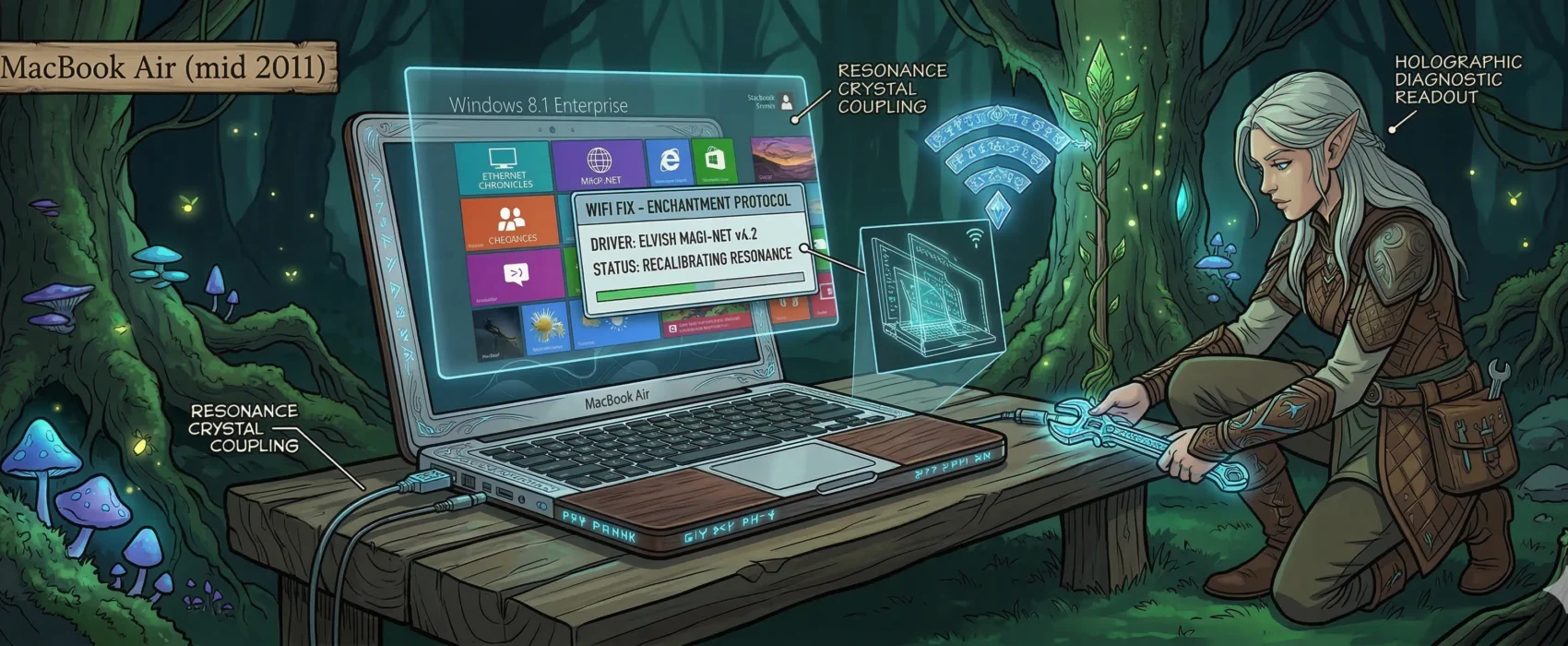

If you are using a network that requires WPA2-Enterprise with AES and PEAP, you may find it impossible to connect using certain hardware. Despite trying many common online solutions, I was unable to get my Broadcom BCM4322 card to connect.
Archive: This content is maintained for historical reference. Please note that the specific versions and commands may no longer be compatible with modern systems.
By chance, I discovered that installing the older Bootcamp 4 wireless driver (originally intended for Windows 7) resolved the issue completely. It appears there is a compatibility bug with the Windows 8 drivers included in Bootcamp 5 and the official Microsoft drivers.
Step 1: Download the Bootcamp 4 Wireless Driver
Depending on your system architecture, download the appropriate driver:
- 64-bit: BroadcomNetworkAdapterWin7_64.exe
- 32-bit: BroadcomNetworkAdapterWin7_32.exe
Alternatively, you can download the full Bootcamp 4.0.4033 package from the Apple website and extract these files: Apple Support – Bootcamp 4.0.4033.
Step 2: Install the Driver
Run the .exe file you downloaded to install the driver onto your system.
Step 3: Run Windows Update
Run Windows Update and install any pending updates.
Note: It is important to do this now because a Windows Update might later try to overwrite your manual driver installation. By updating first, you ensure the system is current before we force the specific 2011 driver version in the next step.
Step 4: Manually Switch to the Windows 7 Driver
To ensure Windows uses the older, working driver, follow these steps:
- Right-click on This PC (or Computer) and select Manage. (This requires Local Administrator rights).
- In the left-hand pane, click on Device Manager.
- In the center list, expand the Network adapters section.
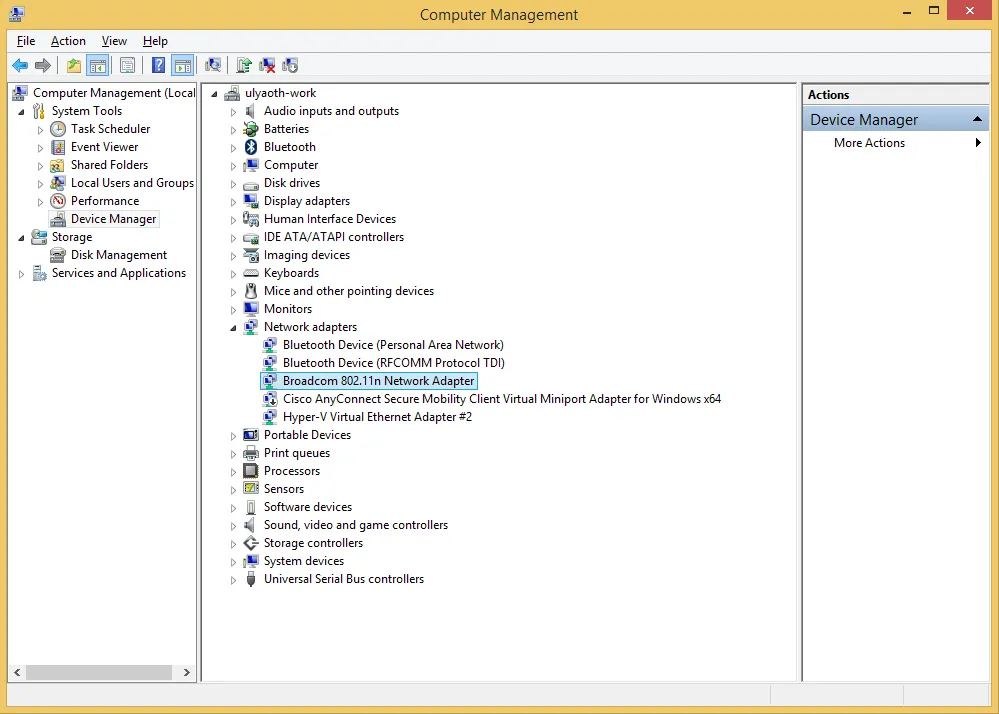
It should now look like this:
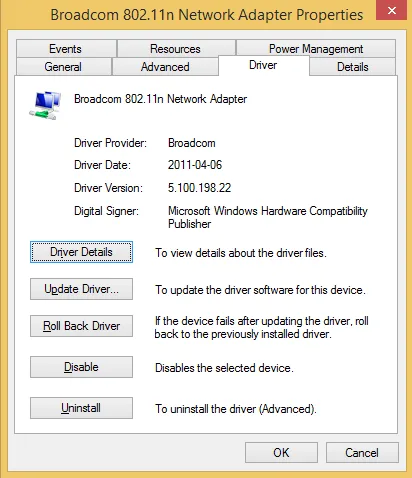
- Right-click on Broadcom 802.11n Network Adapter and select Properties.
- Navigate to the Driver tab.
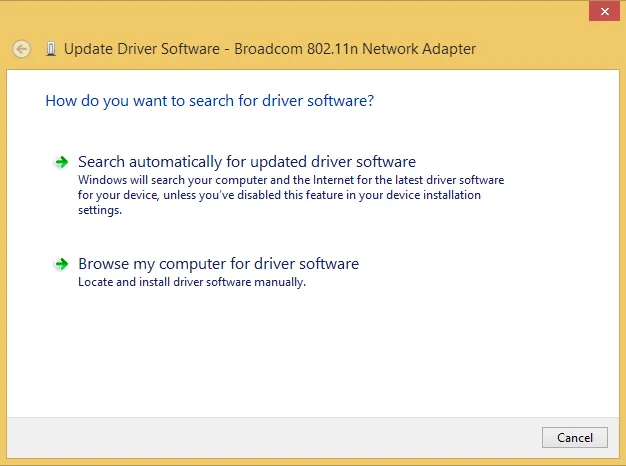
In the image above, my driver date is already 2011-04-06 because I have already fixed the issue. If you are experiencing the bug, your date will likely be from 2013 or 2014.
- Click Update Driver…. When the new window appears, select Browse my computer for driver software.
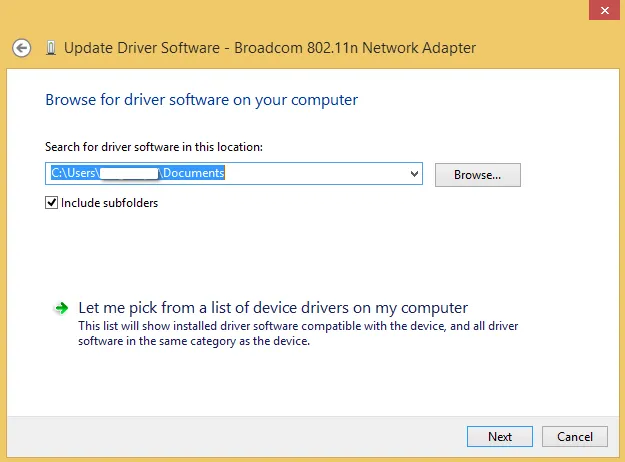
- On the next screen, select Let me pick from a list of device drivers on my computer.
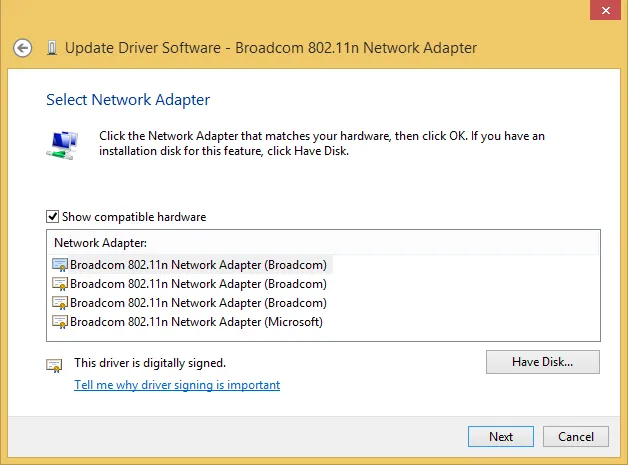
- You will now see a list of compatible drivers. You need to select the version that corresponds to the 2011 driver date. In my case, it was the top option. Select it and click Next.
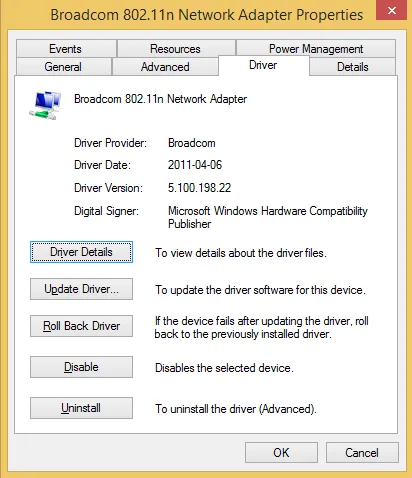
Final Result
Once the installation finishes, verify the driver date in the properties window. It should now show the 2011 version.
After following these steps, I was able to connect to the WPA2-Enterprise network perfectly. It is still unclear why the newer Windows 8 drivers fail to handle this specific authentication, but I hope this helps anyone else struggling with the same hardware!