Archive: This content is maintained for historical reference. Please note that the specific versions and commands may no longer be compatible with modern systems.
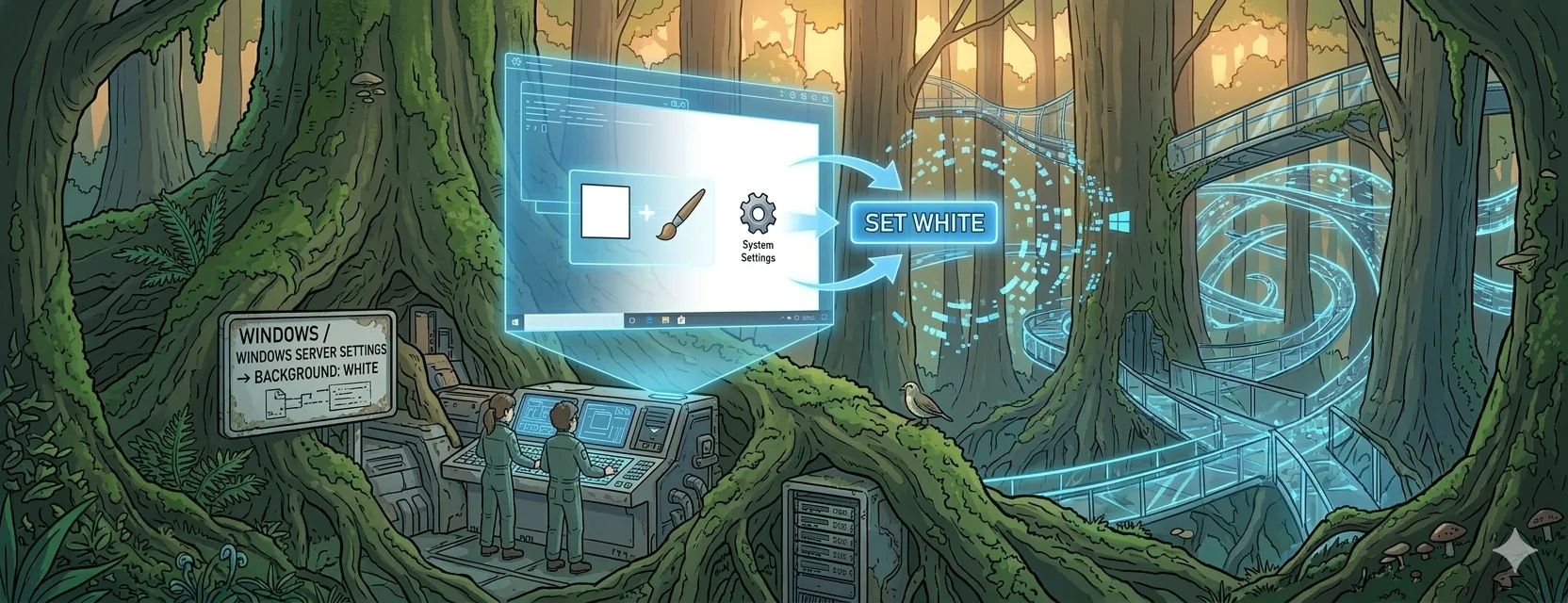
While creating tutorials, I needed a clean white background for my screenshots. Unfortunately, the modern Personalize menu in newer versions of Windows doesn’t make it easy to select a true white hex code.
To bypass these limitations and access the classic color picker, follow these steps:
Step 1: Open the Run Dialog
Press Win + R on your keyboard, or right-click the Start menu and select Run.
Step 2: Access the Legacy Wallpaper Settings
Copy and paste the following command into the text box and press OK:
control /name Microsoft.Personalization /page pageWallpaper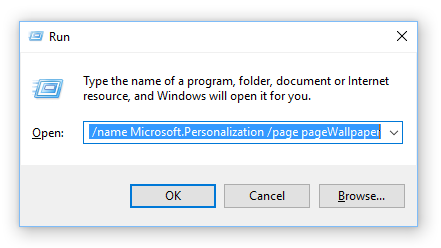
Step 3: Select Your Color
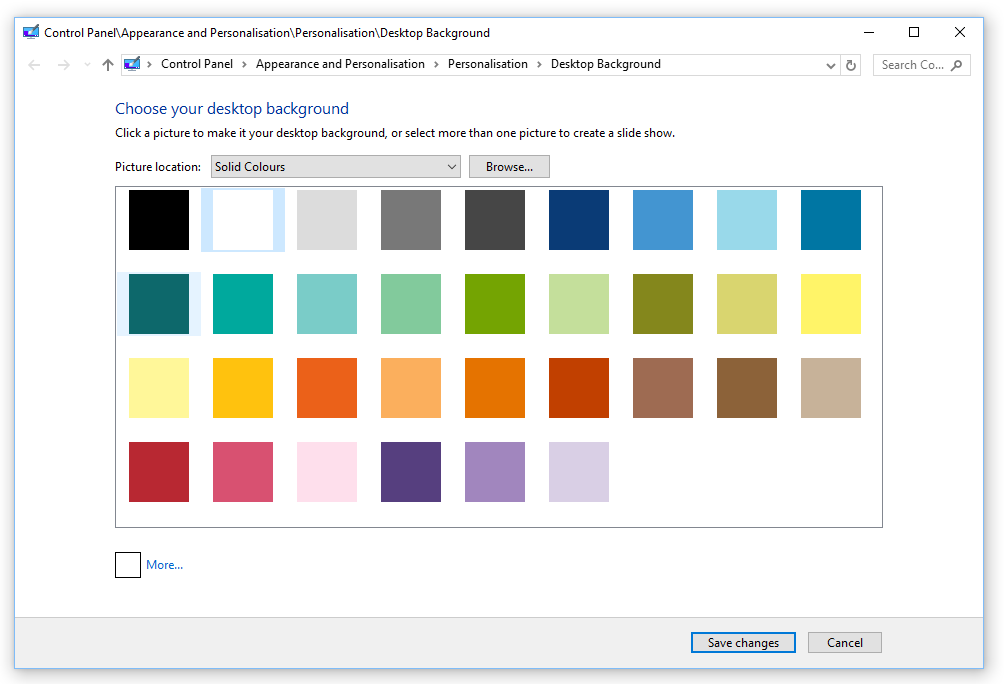
The classic “Desktop Background” window will appear. From here, you can change the Picture location to “Solid Colors.” You will now see a much wider variety of choices—including pure white!