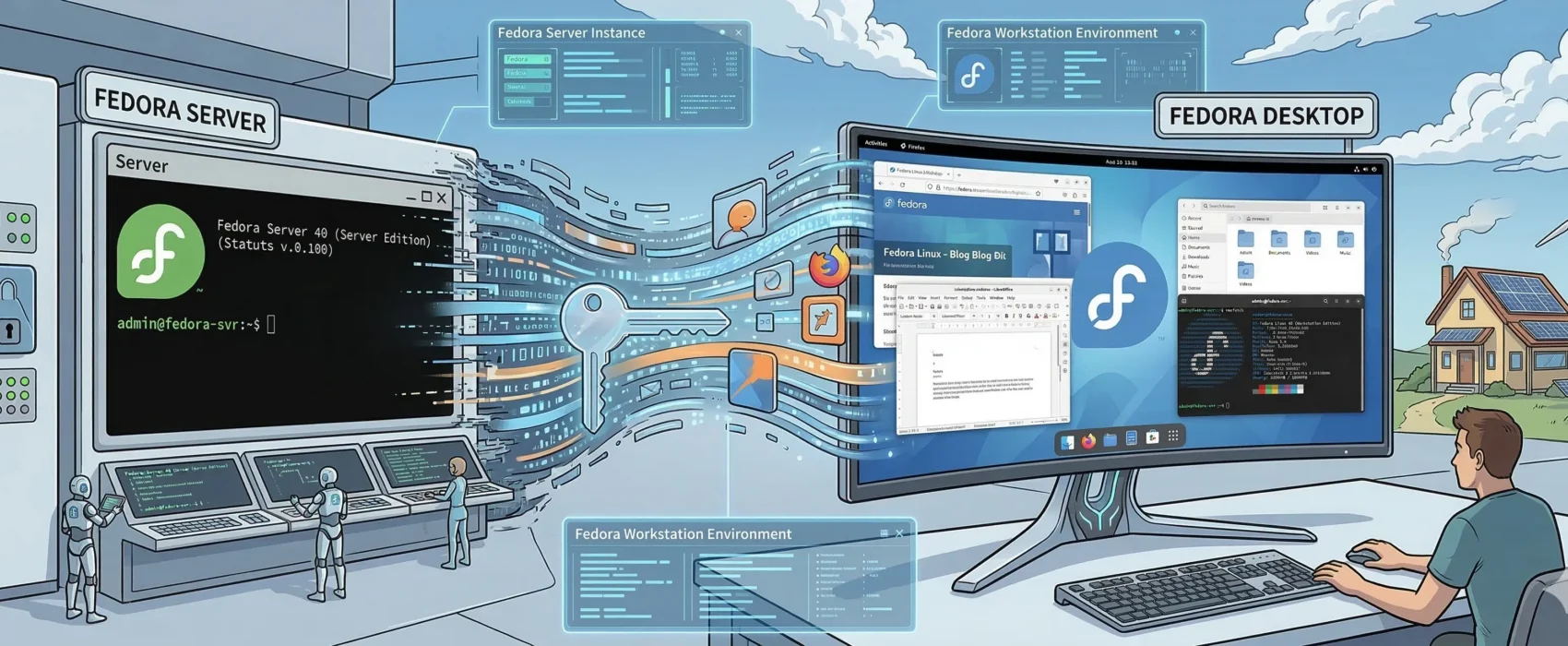

Did you install the minimal Fedora Server and are now wondering how to add a graphical user interface (GUI)? Follow these steps to install and enable your preferred desktop environment.
Step 1: List Available Desktop Groups
First, check which desktop environments are available for installation by running the following command:
dnf group listThis will display a comprehensive list of available software groups, such as Cinnamon, Xfce, and GNOME.
Step 2: Install Your Chosen Desktop
Once you’ve identified the desktop you want, install the corresponding group. For example, to install the Cinnamon desktop, run:
dnf groupinstall "Cinnamon Desktop"If you prefer a lightweight environment like Xfce, simply change the command to:
dnf groupinstall "Xfce Desktop"You can apply this same logic to any other environment, such as “KDE Plasma Workspaces” or “MATE Desktop.”
Step 3: Set the Default Boot Target (Optional)
By default, Fedora Server will continue to boot into the command-line interface. If you want the server to automatically start the graphical login screen on boot, run:
systemctl set-default graphical.targetNote: If you prefer to keep the server lightweight and only start the GUI manually when needed, feel free to skip this step.
Step 4: Reboot Your System
Finally, restart your server to apply the changes:
rebootAfter the reboot, if you performed Step 3, you will be greeted by your new graphical desktop!