
Archive: This content is maintained for historical reference. Please note that the specific versions and commands may no longer be compatible with modern systems.
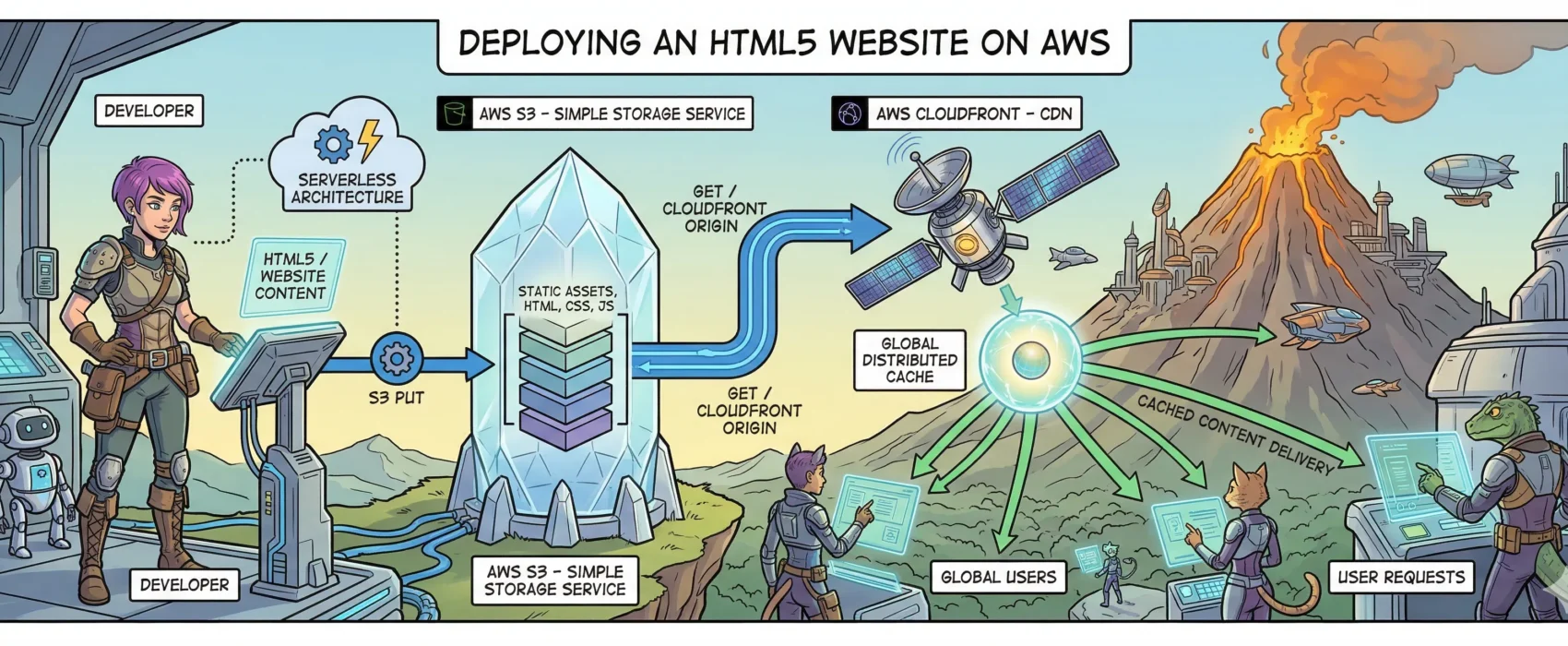
Here is a small tutorial on how to set up an HTML5 website with S3 and CloudFront on AWS.
What we will create in this tutorial:
- 1x CloudFront distribution
- 1x S3 bucket
What is required? For the purpose of this tutorial, a simple “Hello World” file named index.html will be fine. Let’s create a “Hello World” page:
You can use this:
<meta charset="UTF-8">
<title>Hello World!</title>
Welcome to my awesome HTML website hosted on S3!
You can just copy the content to a text editor and save it as index.html.
Now let’s get started! Log in to your AWS account and follow along.
Since both S3 and CloudFront are global services, you can do this from within any region. Let us start by creating an S3 bucket.
From the main AWS page, please search for S3 and click on it to open it.

On this page, you will see a big blue button called “+ Create bucket”. Click on this, and you will see the following:
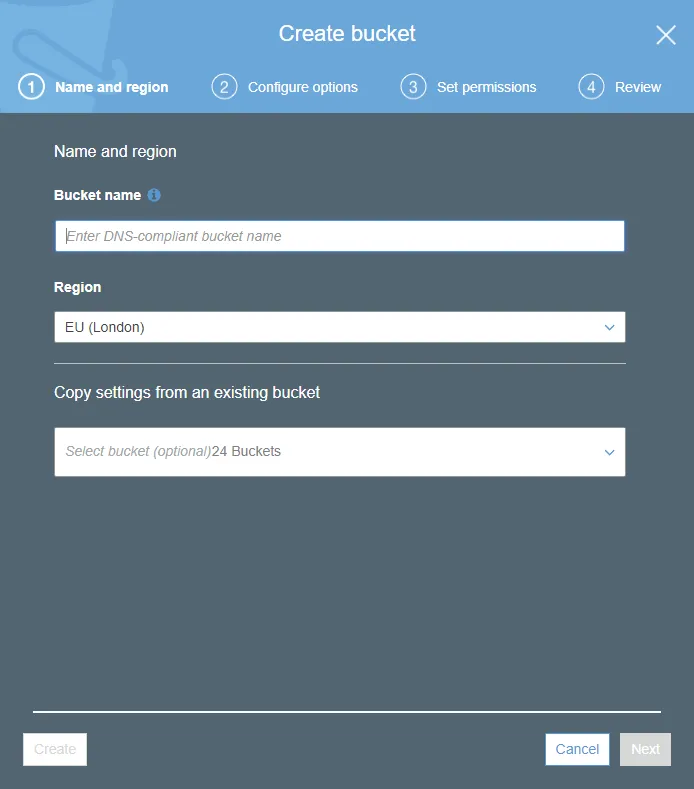
On this page, we must choose two things: first is a unique bucket name, and second is the region where you wish to place the bucket. Please choose this information yourself, but for this example, I chose:
- Bucket Name: ulyaoth-s3-html-tutorial
- Region: Asia Pacific (Sydney) (IMAGE 3)
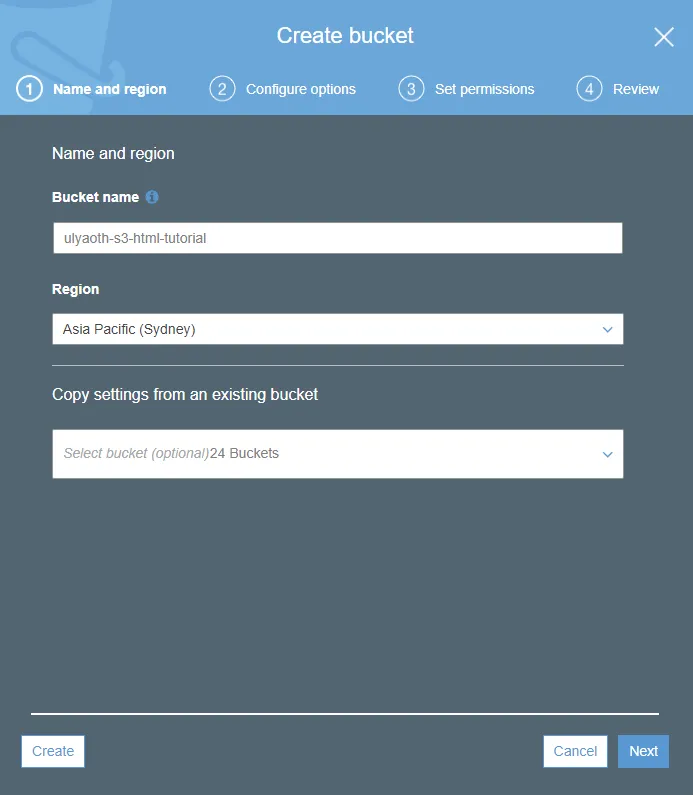
Remember to choose your own unique name and region, and then press the “Create” button. Within a few seconds, your bucket will be created and available:
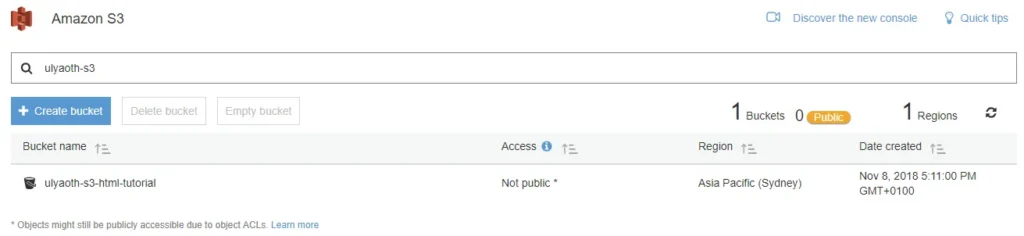
That was all it took to create an S3 bucket! Easy, right?
Now let us upload your index.html page to S3. Click on your bucket and you should see something like this:
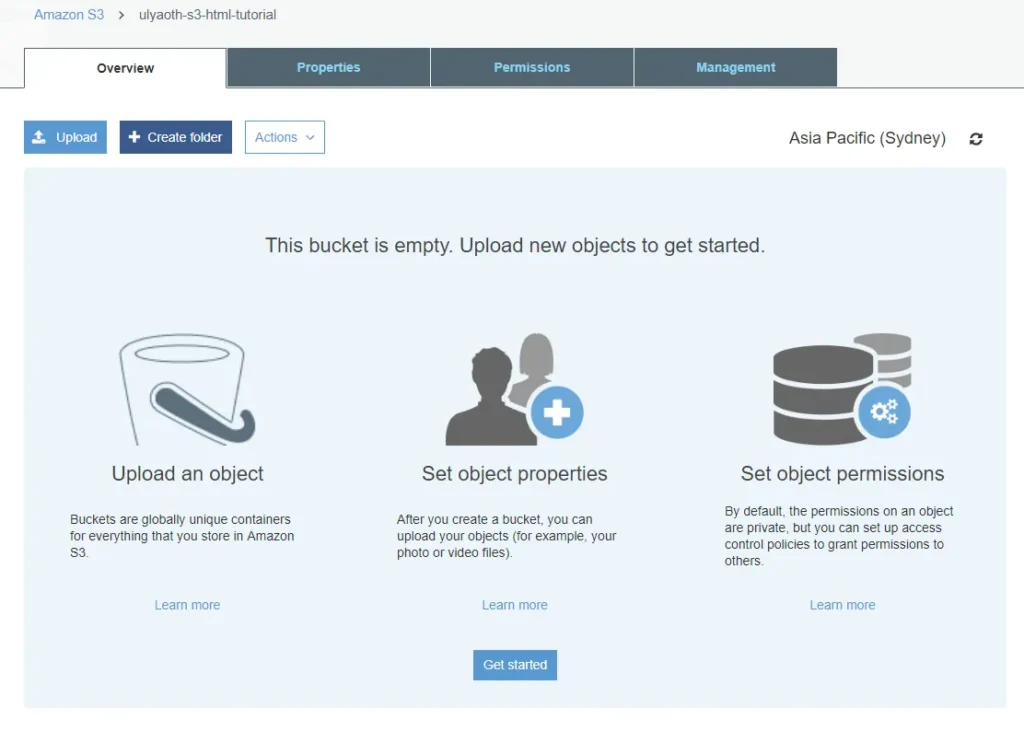
Now press the light blue “Upload” button and you will see:
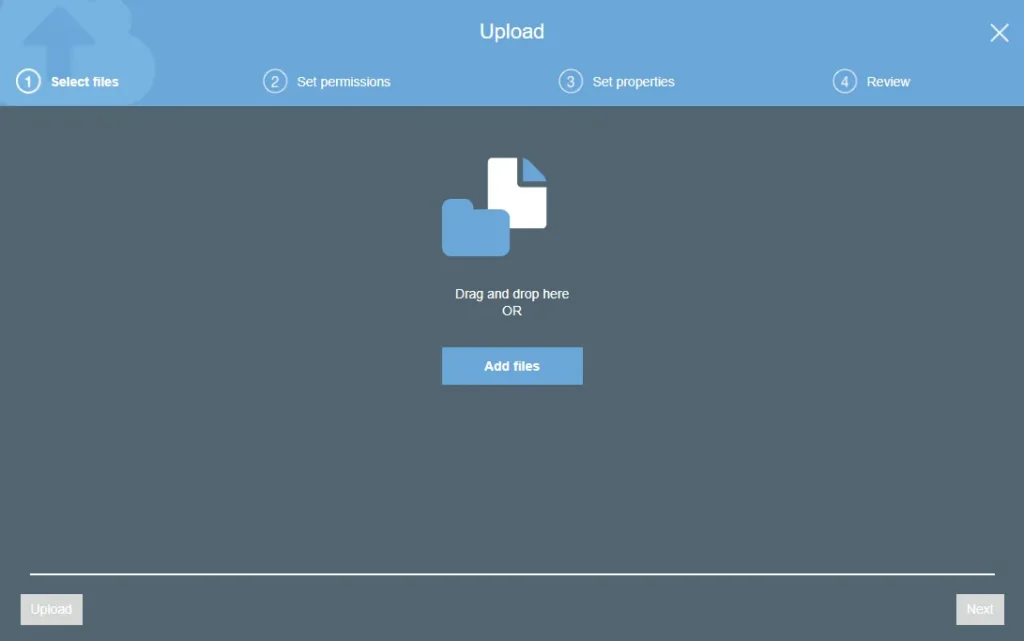
All you do is drag and drop the index.html file I told you to make into this popup, and you will see:
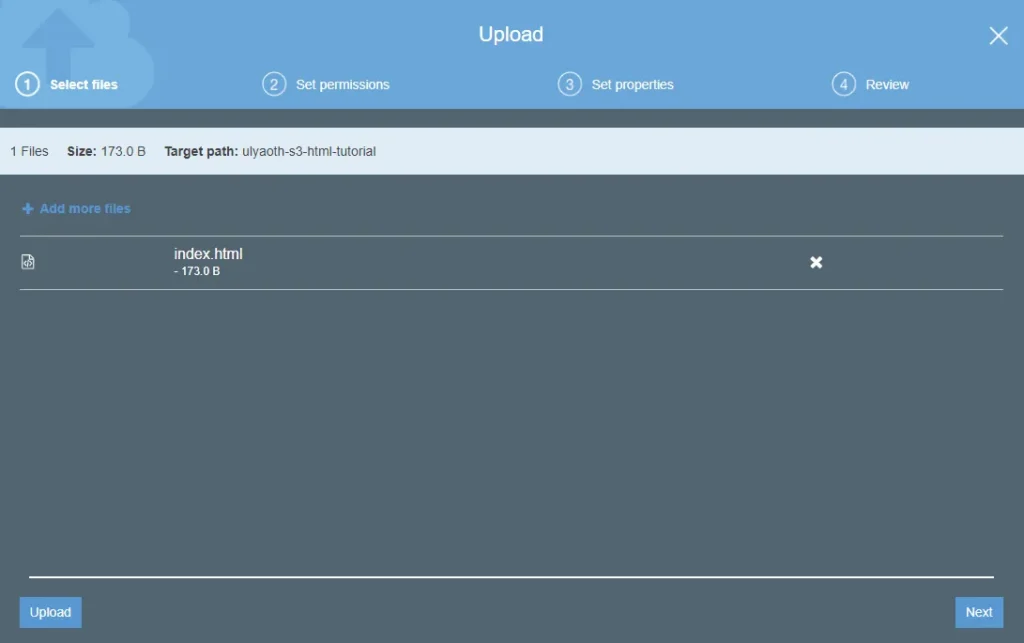
If it looks correct, press the “Upload” button and you will see the file upload to your bucket:
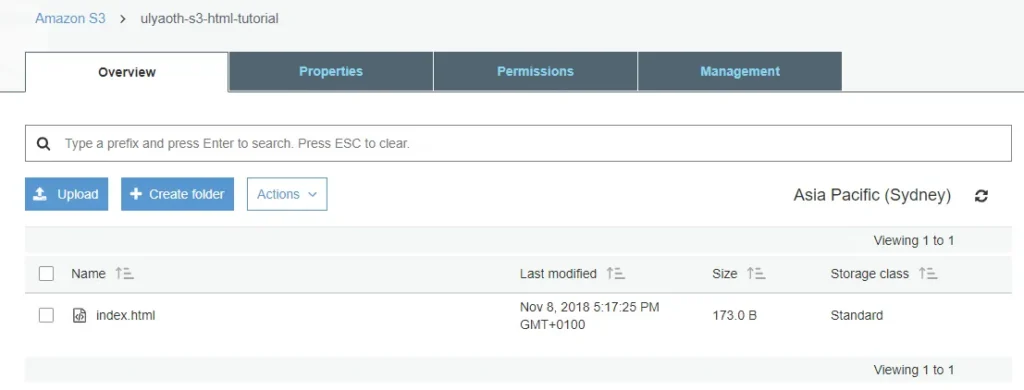
Congratulations! This was actually all you had to do to upload your simple HTML website to AWS. In reality, you might also upload images, more pages, etc., but you would do it in the exact same way. (There are better and more advanced ways, but I left those out of this tutorial.)
For example, in the interface where you dropped the HTML page, you could drop a whole website; it would look similar to this:
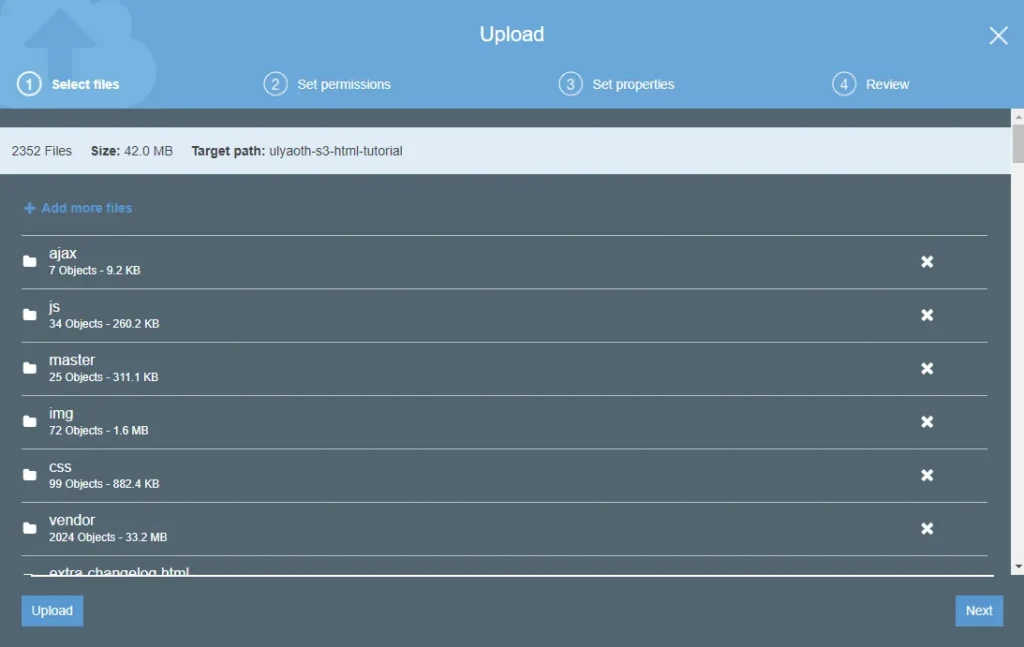
As you can see, it is exactly the same process we did for one file, just with hundreds of files.
Creating a CloudFront Distribution
CloudFront is Amazon’s CDN, but it is also great for keeping your S3 bucket private while only serving your pages through CloudFront.
To create a CloudFront distribution, go back to the main AWS page by clicking the AWS logo at the top. This time, search for “CloudFront” and click on it.

When you are in the CloudFront interface, click on the blue button called “Create Distribution” and you will see:
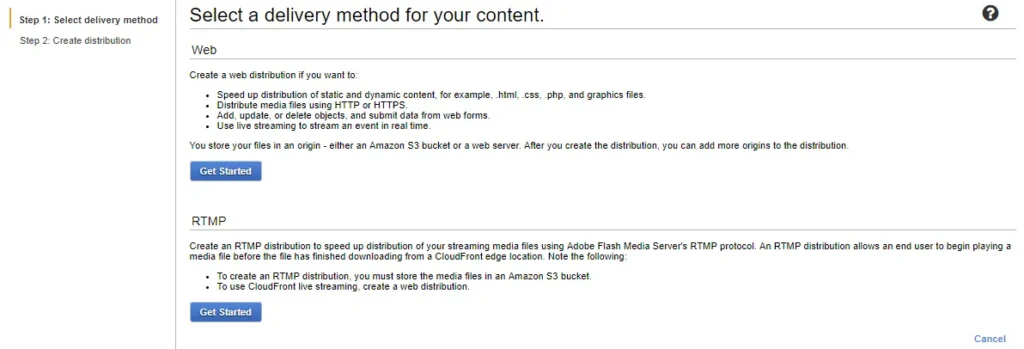
For this tutorial, we will use the first option, “Web”, so click the blue “Get Started” button. You will see a very large page:
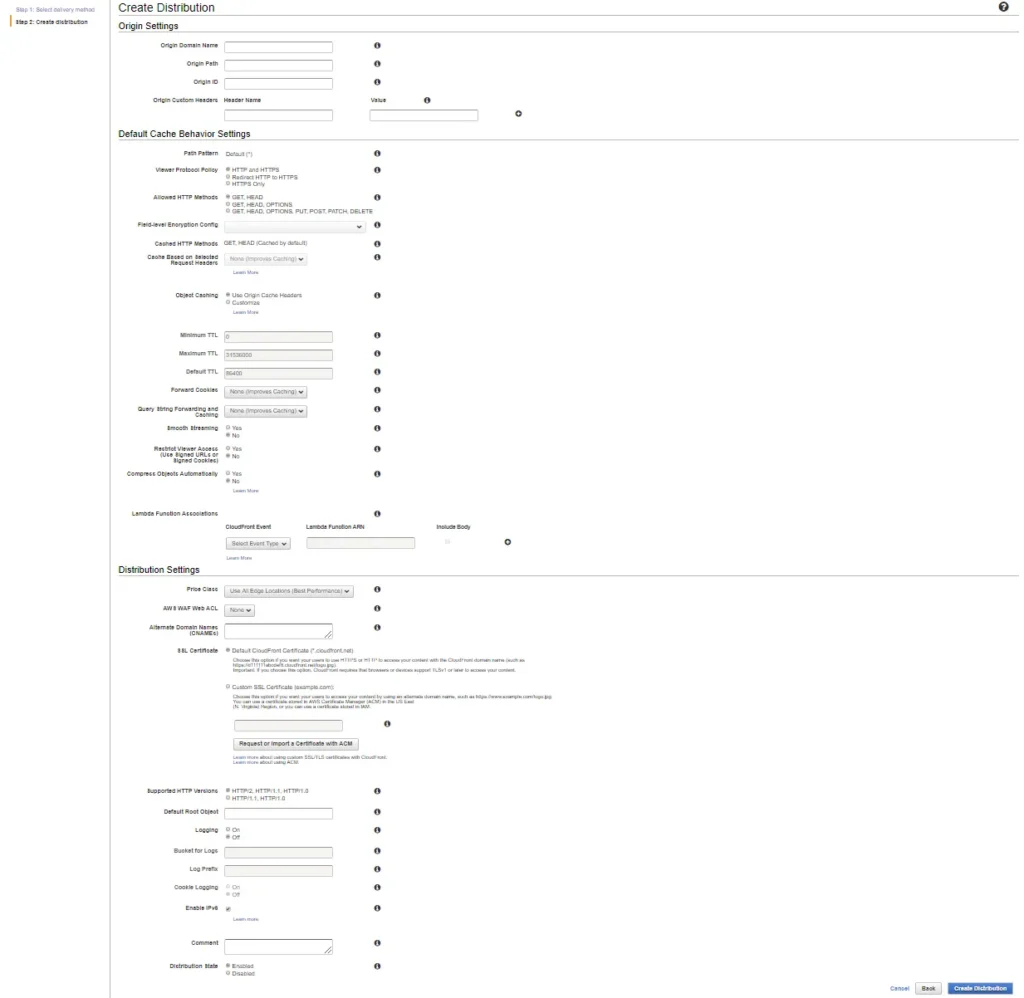
Fill in this page as follows (changing the names accordingly to your chosen bucket):
- Origin Domain Name: ulyaoth-s3-html-tutorial.s3.amazonaws.com (Choose your own S3 bucket from the dropdown)
- Origin ID: S3-ulyaoth-s3-html-tutorial (You can add your own comment here)
- Restrict Bucket Access: Yes
- Origin Access Identity: Create a New Identity
- Grant Read Permissions on Bucket: Yes, Update Bucket Policy
- Viewer Protocol Policy: Redirect HTTP to HTTPS
- Allowed HTTP Methods: GET, HEAD
- Object Caching: Use Origin Cache Headers
- Forward Cookies: None
- Query String Forwarding and Caching: None
- Smooth Streaming: None
- Restrict Viewer Access (Use Signed URLs or Signed Cookies): No
- Price Class: Use All Edge Locations
- AWS WAF Web ACL: None
AWS explains all these options in detail, so I highly recommend reading through their documentation: https://docs.aws.amazon.com/AmazonCloudFront/latest/DeveloperGuide/GettingStarted.html
By doing this, you will gain an understanding of why we chose the options above and what they actually mean.
I stopped here because the next options require extra attention. Let’s start with:
- Alternate Domain Name (CNAMEs): s3-html-tutorial.ulyaoth.com
This option will be the domain name you use to browse your website, so please be 100% sure to use your own domain name.
Next, we need to create an SSL certificate, so choose:
- SSL Certificate: Custom SSL Certificate (example.com)
Then press the grey button called “Request or Import a Certificate with ACM”. A new page will open:
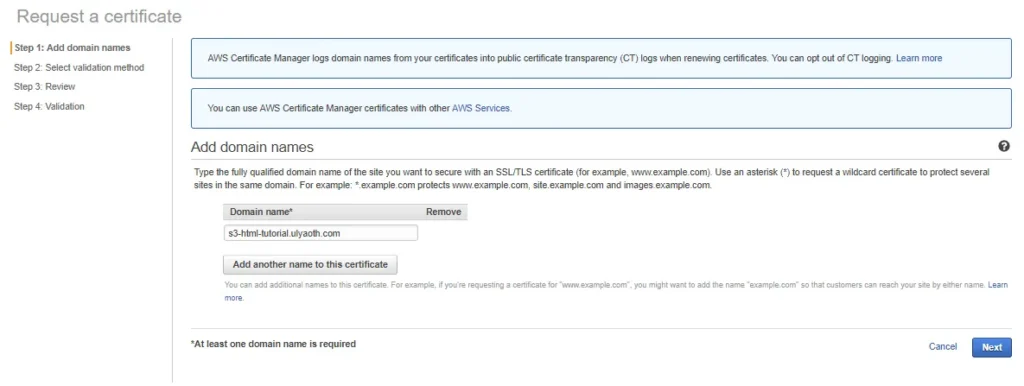
As you can see, I already filled in the domain name I will be using: s3-html-tutorial.ulyaoth.com. Please fill in your domain name and press the blue “Next” button.
You will now see a page like this:
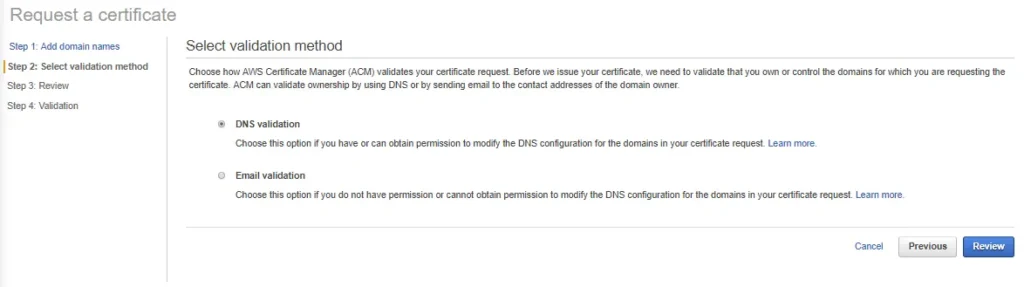
In my case and for this tutorial, I will verify via Email. This is required to allow AWS to create a certificate for me. I choose “Email Verification” and then press the blue “Review” button. You should see something similar to:
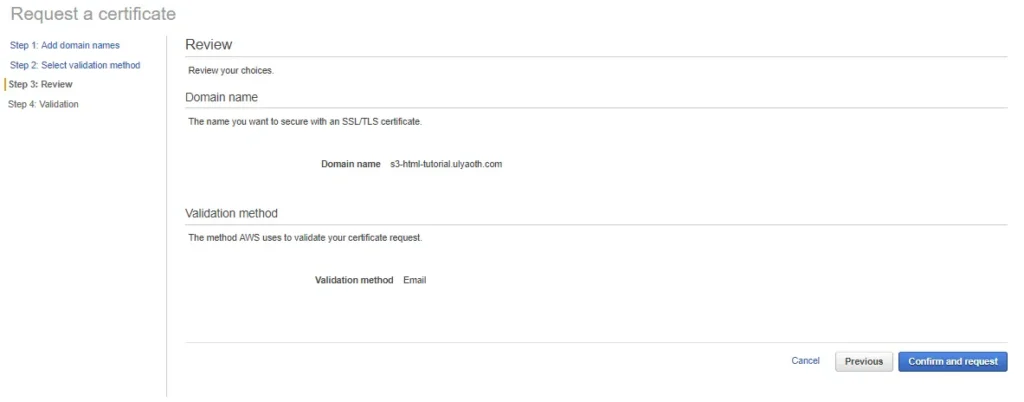
If everything looks fine, press the blue “Confirm and request” button and you will see:
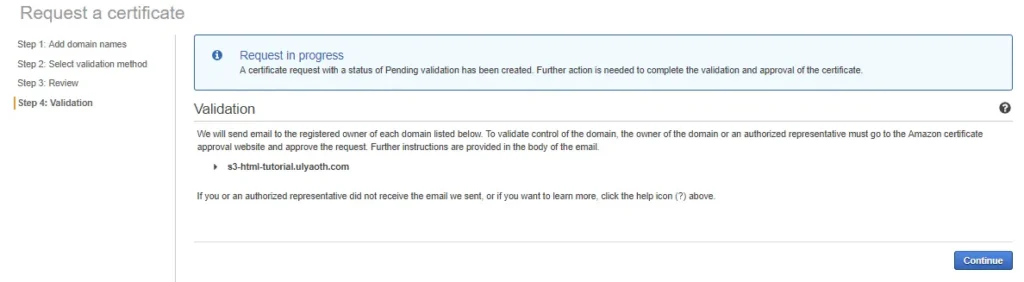
Press “Continue.” Within a few minutes, you should receive an email from AWS like this:
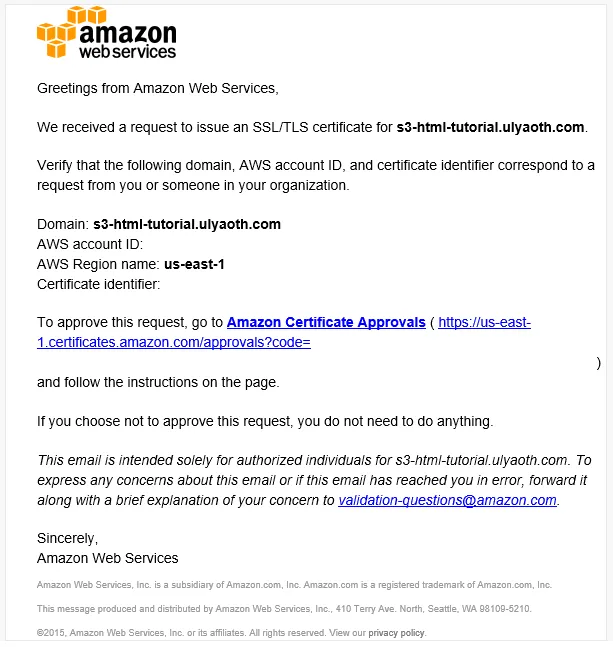
Double-check that everything looks correct and click the link “Amazon Certificate Approvals.” You should then see this webpage:
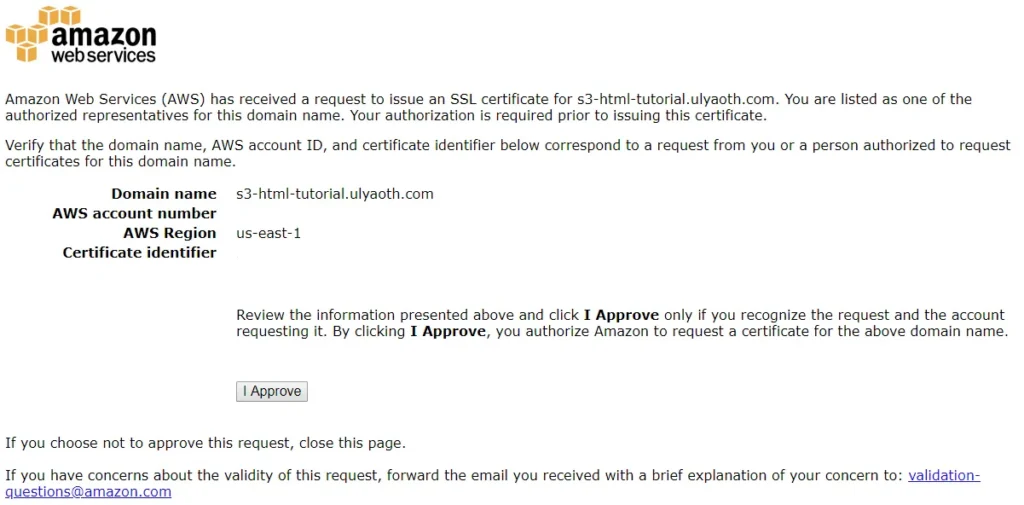
The webpage is basically a repeat of the email. If you have verified that everything looks fine, press the gray “I Approve” button and you will see a success message:
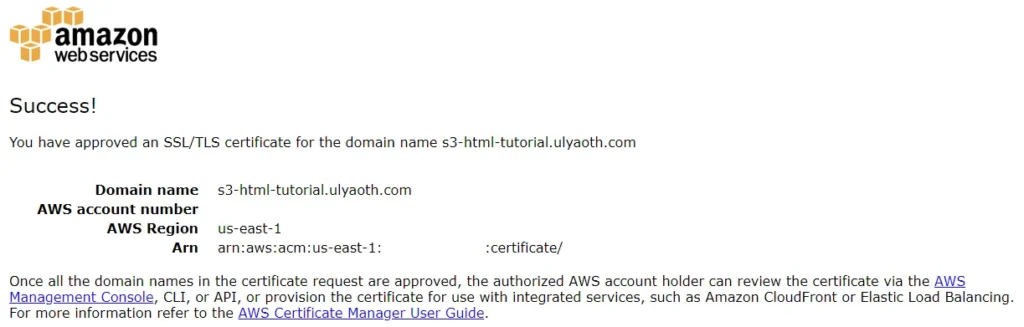
If you go back to the certificates page, you should now see a green “Issued” status:
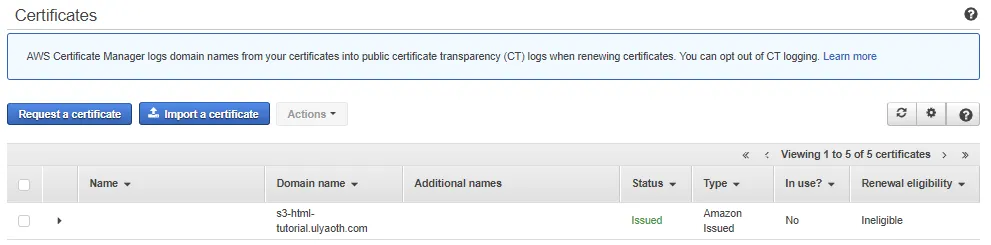
You can close this page and go back to the browser tab where we are filling in the CloudFront details.
Under “Custom SSL Certificate (example.com)” there is a white box. If you click it, a dropdown will appear where you can choose the certificate that matches your domain:
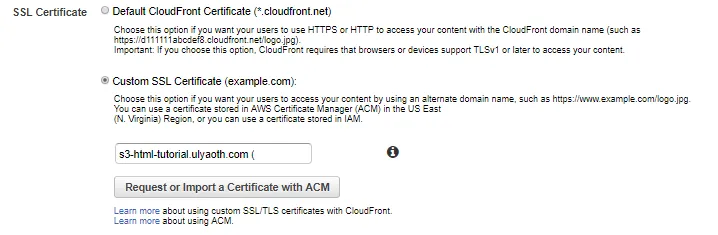
(Note: Some people have mentioned they don’t see the certificate immediately. If this happens, you may need to reload the page and fill in the details again.)
Now fill in the rest of the options as follows:
- Security Policy: TLSv1.2_2018
- Supported HTTP Versions: HTTP/2, HTTP/1.1, HTTP/1.0
- Default Root Object: index.html
- Logging: Off
- Enable IPv6: (leave it as it is)
- Distribution State: Enabled
If you followed along, it should look like this:
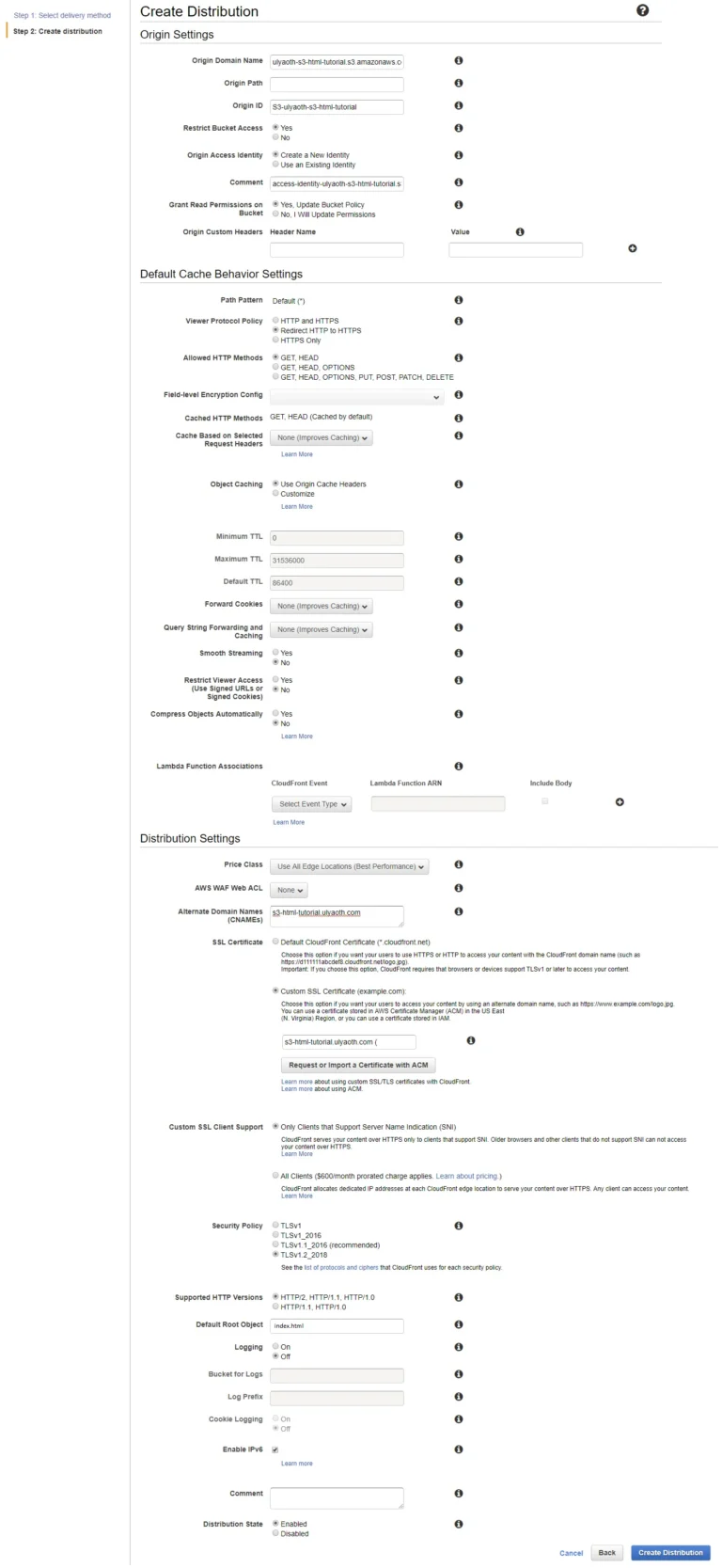
If it does, press the “Create Distribution” button. You will need to wait about 15 minutes for CloudFront to deploy. On the “Distributions” page, you should see:
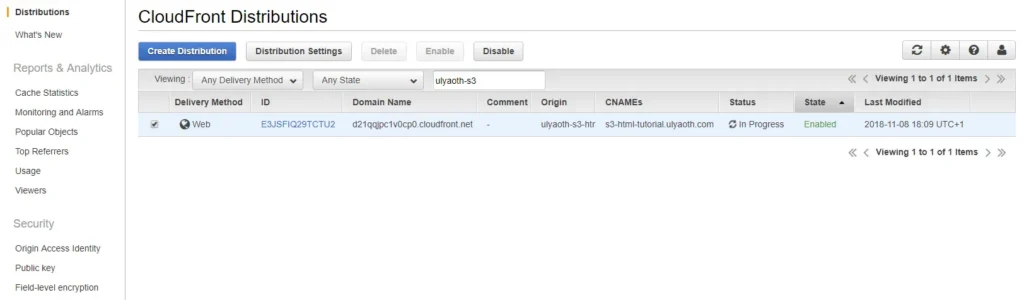
Status: In Progress
Once it is finished, the status will change to Deployed.
Additionally, you will now see a “Domain Name” and “CNAMEs”. For me, this shows:
- Domain Name: d21qqjpc1v0cp0.cloudfront.net
- CNAMEs: s3-html-tutorial.ulyaoth.com
This means you must now go to your DNS provider and create a CNAME record as follows: s3-html-tutorial.ulyaoth.com CNAME d21qqjpc1v0cp0.cloudfront.net
After your distribution status has changed to “Deployed,” you can finally browse your website!
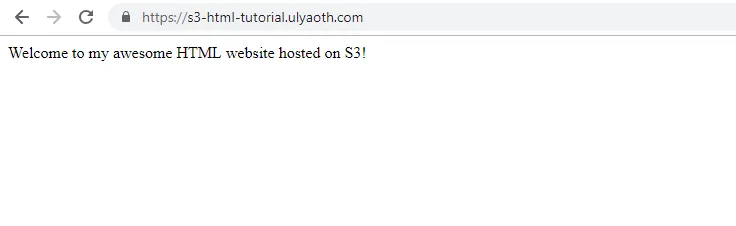
For me, I go to https://s3-html-tutorial.ulyaoth.com and I can see my HTML website:
Congratulations, that was all! 🙂 Of course, there is much more you can do, but this shows how easy it is to host a basic HTML site on S3 and CloudFront without using any servers.