
In the short guide below, I will show you how to use a .vhd image file with VirtualBox.
For this tutorial, I am using the VHD image that Microsoft provides for their Windows Server 2012 R2 evaluation. You can download it here: https://www.microsoft.com/en-us/evalcenter/evaluate-windows-server-2012
Step 1: Start VirtualBox
Open VirtualBox on whichever operating system you are currently using.
Step 2: Create a new Virtual Machine
Click the New button in the top right of the VirtualBox interface. The button should look like this:

A pop-up window will appear that looks like this:
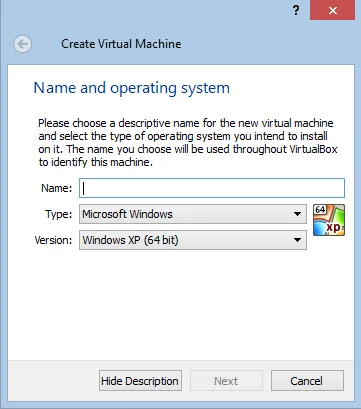
Assuming you are following this guide using the Windows Server 2012 R2 image, fill out the window as follows:
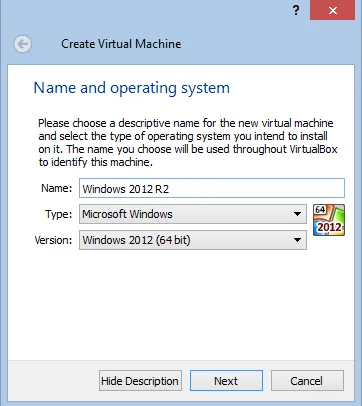
After filling this in, click the Next button. You should see a window like this:
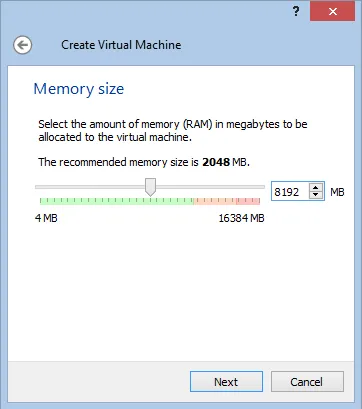
On the window above, specify how much memory (RAM) you wish to assign to the virtual machine. As you can see, I assigned 8GB, but please choose an amount that fits your specific environment.
Click the Next button again to see the following window:
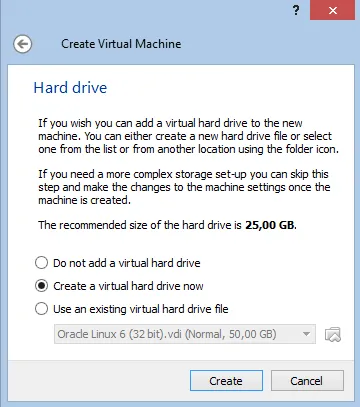
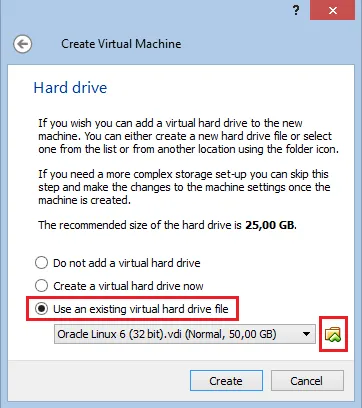
This window contains the most important step for using your .vhd file. Select the option “Use an existing virtual hard drive file” and then click the yellow folder icon as shown below:
Once you click the yellow folder, a file browser will open (this window may look different depending on your OS). Navigate to and select your .vhd image file:
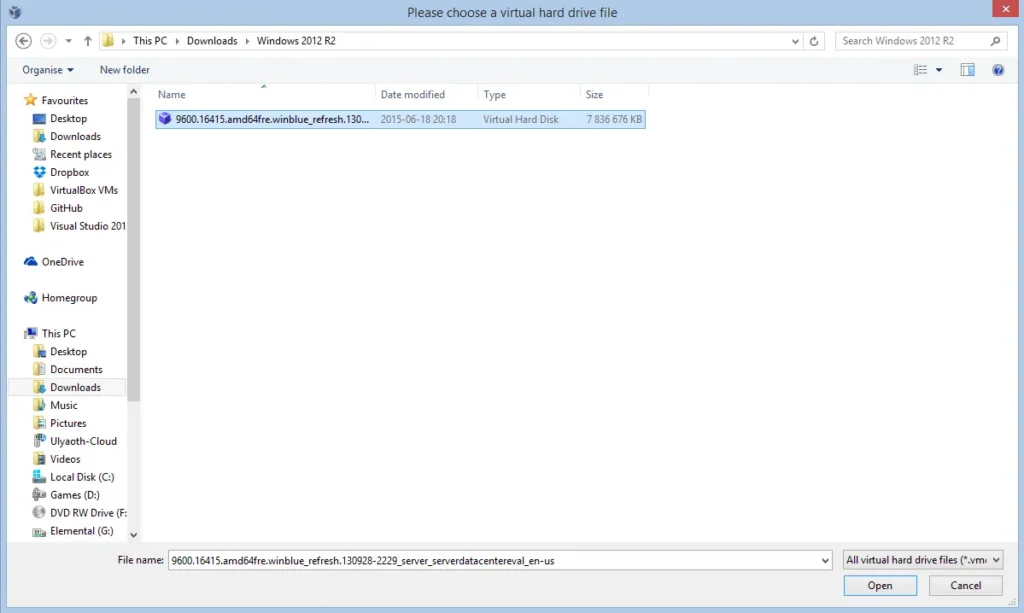
Select the image file as shown in the picture above and click the Open button. You should now see the name of the image file in the previous window:
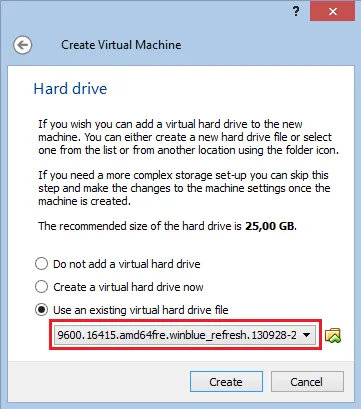
Simply click Create to generate your virtual machine based on that .vhd image.
Congratulations! You have successfully created a virtual machine using an existing .vhd image.
Step 3: Start the Virtual Machine
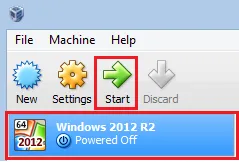
In the left-hand pane, select the machine we just created (“Windows 2012 R2”) and then click the Start button.
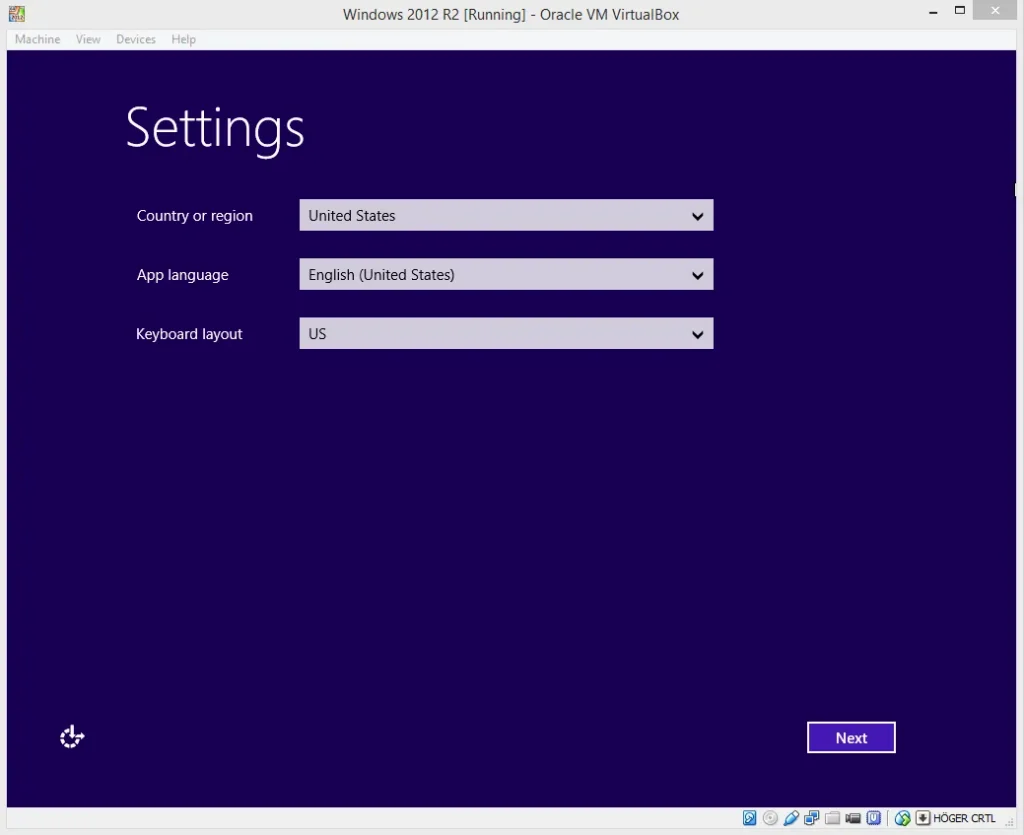
That is all! If everything was done correctly, you should see the machine boot up and display the Windows Server 2012 R2 Settings prompt:
Now, simply proceed with configuring the operating system you chose to use.